
Help on browsing Regulatory Documents
REGDOCS – Getting Started – What you need to know
Table of Contents
- 1. What is REGDOCS
- 2. Features of REGDOCS
- 2.1. Main Page
- 2.1.1. Search by keyword(s)
- 2.1.2. Search by document number
- 2.1.3. Search by quick links / tools
- 2.1.4. Search by folders
- 2.1.5. Using filters
- 2.2. Project folders
- 3. Quick view / tips
- 4. Need help?
- 5. Feedback
1. What is REGDOCS?
REGDOCS is the collection of publicly accessible documents that are filed onto the legal record for any of our hearings or other written regulatory proceedings. You might have heard this tool called other names like the public registry, CS-10, or Livelink.
Documents are uploaded onto REGDOCS through the Participation Portal, Electronic Document Submission (e-file) system, Online Application System (for companies), or are mailed or faxed to the Canada Energy Regulator (CER). They originate from the applicants (for example, a company applying for a pipeline project), the CER or the Commission of the CER (such as when letters or orders are issued), and various participants in our regulatory processes (for example, intervenors in a hearing). Our technical staff and Commissioners use these documents when considering project applications and other regulatory matters.
2. Features of REGDOCS
2.1. Main Page
The following is an image of the main page of REGDOCS. There are a lot of features which are explored further below.

Image Description
Screenshot of the CER’s REGDOCS homepage. The page has searching features to help you access the CER’s collection of publicly accessible documents that are filed onto the legal record for any of our hearings or other written regulatory proceedings. These features include a search bar for keywords and document numbers, icons to assist with narrowed searches and pinning search results, and a link to this REGDOCS guide. Below the above is a 'Browse Folder Structure' section organizes content into the following categories: facilities; traffic, tolls and tariffs; advisory documents; and exports and imports. Below the 'Browse Folder Structure' are links for advanced searches, pinned favorites, feedback, and a link to this REGDOCS guide
2.1.1. Search by keyword(s)

You can search REGDOCS by entering a term or phrase into the “Search by Keyword(s)” box.
Start typing a search term (for example, pipe line) and click the “Search” button. You do not need to use plus signs or quotes, as the search is assuming you are looking for a phrase. Below is an image of the search results. You may also see suggested options appear in a drop down menu as you type your search term.
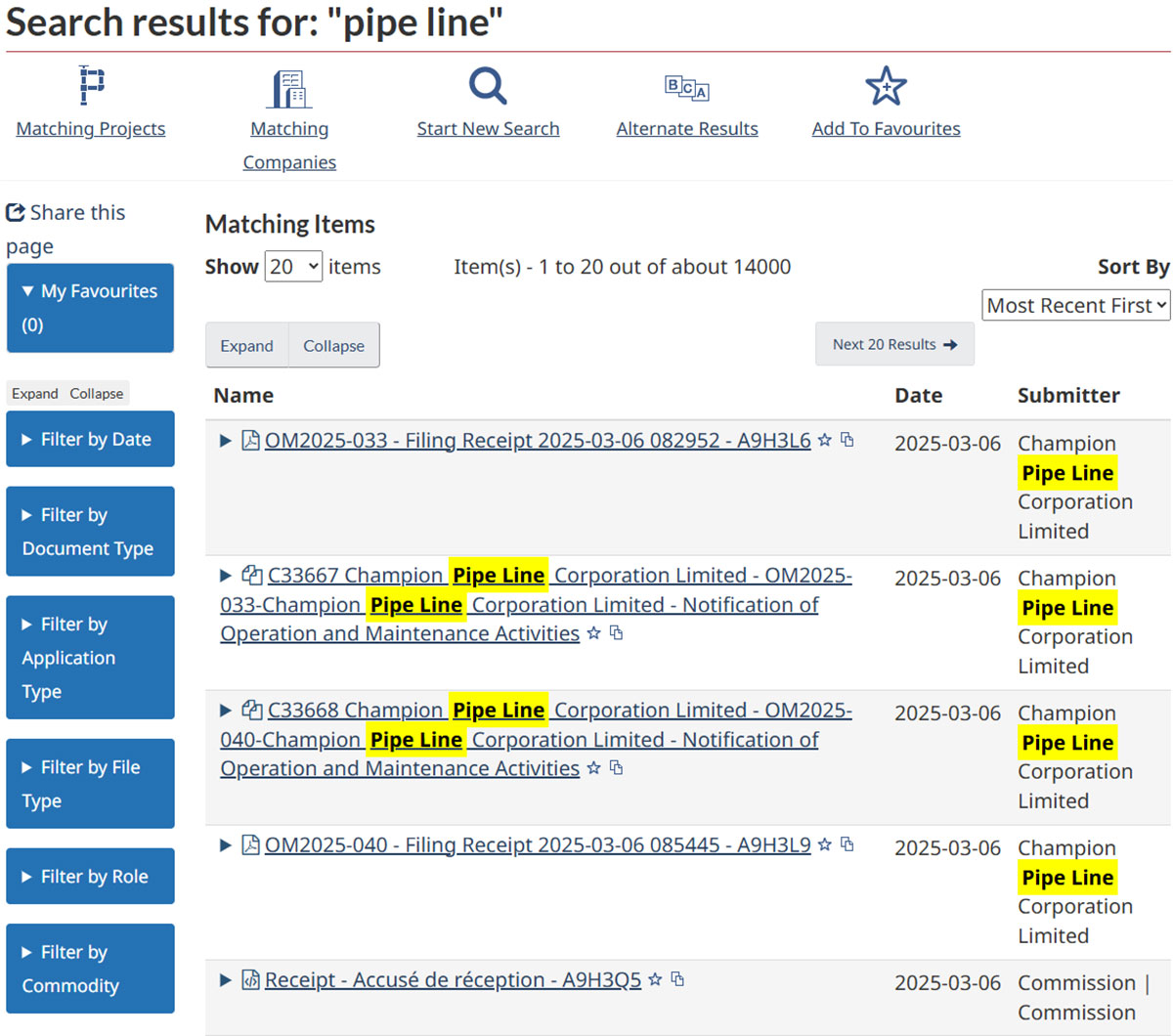
Image Description
Screenshot from the CER’s REGDOCS website displaying search results for 'pipe line.' The page shows a list of search results sorted by ‘most recent first’, with columns for the document name, the filing date, and the submitter. The search term ‘pipe line’ is highlighted in yellow wherever it appears in the search results. The left sidebar contains filtering options, including date, document type, application type, file type, role, and commodity. The top navigation bar provides options for starting a new search, viewing alternate results, and adding items to favorites.
The list of documents can be sorted by date (oldest first, most recent first), document name (name A-Z, name Z-A) or by submitter (submitter A-Z, submitter Z-A) using the “Sort By” drop down menu. You can also select how many documents to display using the “Show” drop down menu (20, 50, 100, or 200, if applicable).

Clicking “Matching Projects” or “Matching Companies” will take you to a search of projects or companies with the same keyword. Clicking “Alternate Results” will show a list of results of all your search words independently.

2.1.2. Search by document number
Documents in REGDOCS are assigned a document number (sometimes referred to as a document ID or exhibit number), for example, C32981, C32981-1, and C32982-2 in the image below.
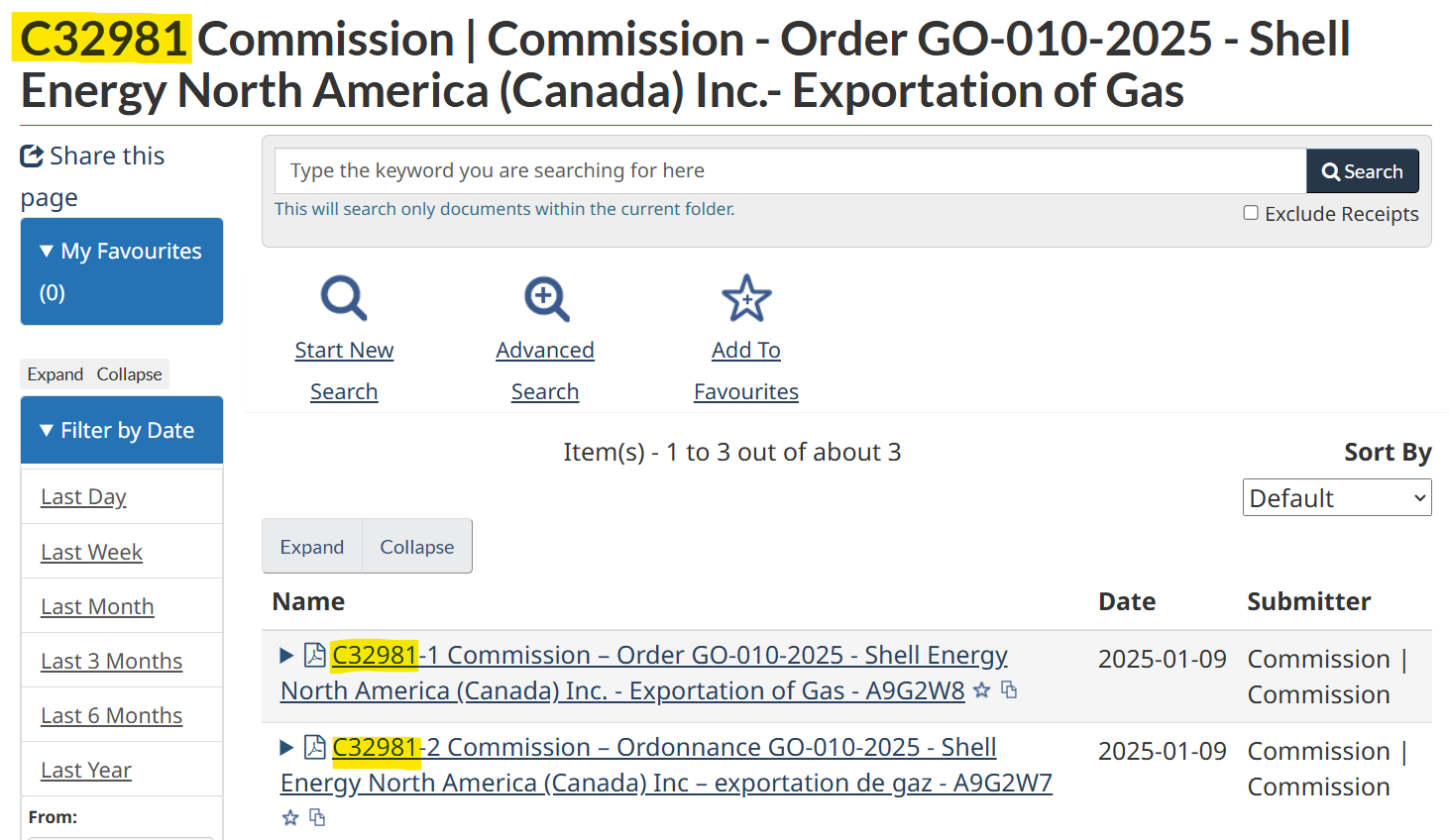
Image Description
Screenshot from the CER’s REGDOCS website displaying search results for document number C32981 with columns for the document name, the filing date (9 January 2025), and the submitter (the Commission). The page shows three matching items, all related to an order for Shell Energy North America (Canada) Inc. regarding the exportation of gas. The document number 'C32981' is highlighted in yellow wherever it appears in the search results. The page includes a search bar to search the results by keyword, and quick links to start a new search, do an advanced search, and add items to favorites. The left sidebar contains filtering options by date, including last day, last week, last month, and longer time frames.
If you know the exhibit list number, filing ID, or document ID for a specific document (for example C12345, C12345-1, or A1A2A3), you can enter the number in the “Search by Document Number” box to bring up that specific document.

2.1.3. Search by quick links / tools
The REGDOCS main page includes some quick links and tools that may help you find the information you want. Hovering your cursor over the links will bring up a short description. The table below also includes additional information of these quick links / tools.
Recent Filings / Inbox - Lists recent filings made to REGDOCS – you can view filings from that day, the past week, or the past month.

Find a Project - List contains projects which have involved a hearing process and online records.
Recent Decisions and CER Reports - Lists recent letter decisions and reports issued during the past 3 months, 6 months, year, and five years, depending on your selection.

Find a Company - List includes all companies who have filed an application with the CER. Note that a company may appear in the list more than once if it files applications of different types or for different commodities.
Active Hearings - Lists active hearings before the Commission.
Browse by Category - This feature is to help you find information by categories, such as the document type (e.g., Certificate), application type (e.g., application under section 214 of the Canadian Energy Regulator Act, or CERA), file type (e.g., Adobe PDF); role (e.g., intervenor); or commodity (e.g., oil or gas).
Advanced Search - This feature allows you to select multiple options for your search.

My Favourites - You can pin items to your favourites so you can go back to them later without searching again. Click on the star icon at the right hand side of the item to add an item to favorites.
You can choose up to 50 favourites. Your first five will appear on the left hand side of any page you are on in REGDOCS, and you can choose to show more if you want to see the rest. Your favourites will stay active until you clear your browser history.
2.1.4. Search by folders
Using the “Browse Folder Structure” (see image below), you can search REGDOCS using shortcuts to facility-related applications; applications related to traffic, tolls and tariffs; advisories; and applications related to exports and imports.

Image Description
Screenshot from the portion of the CER’s REGDOCS page displaying the 'Browse Folder Structure' section. This section categorizes regulatory documents into four categories: facilities; traffic, tolls and tariffs; advisory documents; and exports and imports. Each category contains a list of links to subtopics, such as compensation applications; gas; oil; and statistics and analysis.
2.1.5. Using filters
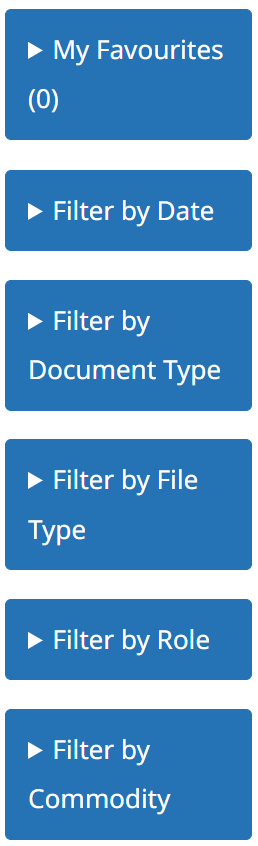
You can use filters to reduce the number of search hits that come up. You can filter the search results by date, document type, application type, file type, role, or by commodity. These filters are applied on top of your original search text result or are the categories you can pick from for a category search.
Once you start a search using a term, you can select a filter from each category and you can remove it at the top by clicking on the “x” or selecting “Clear All Filters”. You can select one filter from each category. If you want to filter two different options in one category, you must clear the first filter and select the second one. To select multiple options, use the advanced search tool.
Image Description
Screenshot from CER’s REGDOCS website showing the following search filters: favourites; filter by date; filter by document type; filter by file type; filter by role; and filter by commodity. Each filter can be expanded or collapsed to refine search results.
2.2. Project folders
Projects are arranged in folders on REGDOCS. See below as an example.

Image Description
Screenshot of a project page from the CER’s REGDOCS website for the NEBC Connector Project (OH-001-2022), dated 18 November 2021. The page a list of the following folders for this project: the project inbox; the project notification; the CER Report; documents related to the certificate, orders, and compliance; the hearing order; the list of parties; registration to participate; and transcript. Below these folders is a a 'Project Information by Role' section categorizes documents under expandable folders labeled 'A - Commission of the Canada Energy Regulator,' 'B - Canada Energy Regulator,' 'C - NorthRiver Midstream NEBC Connector GP Inc.,' 'D - Intervenors,' and 'E - Commenters.' On the left side of the page is a sidebar contains filtering options by date, document type, file type, and role. The page also includes a search bar, navigation options for starting a new search, advanced search, and adding items to favorites.
This project folder is the easiest way to find documents related to a specific project or hearing. Once you are in the project folder, you can filter or search a term within the project folder. You can also add the project folder to your “Favourites” by clicking on “Add to Favourites” at the top.
Below the “Project information by role” section are the frequently accessed documents inside of the project folder. These are to provide you with easy access to the top ten most commonly accessed documents or folders for a particular search term or project.
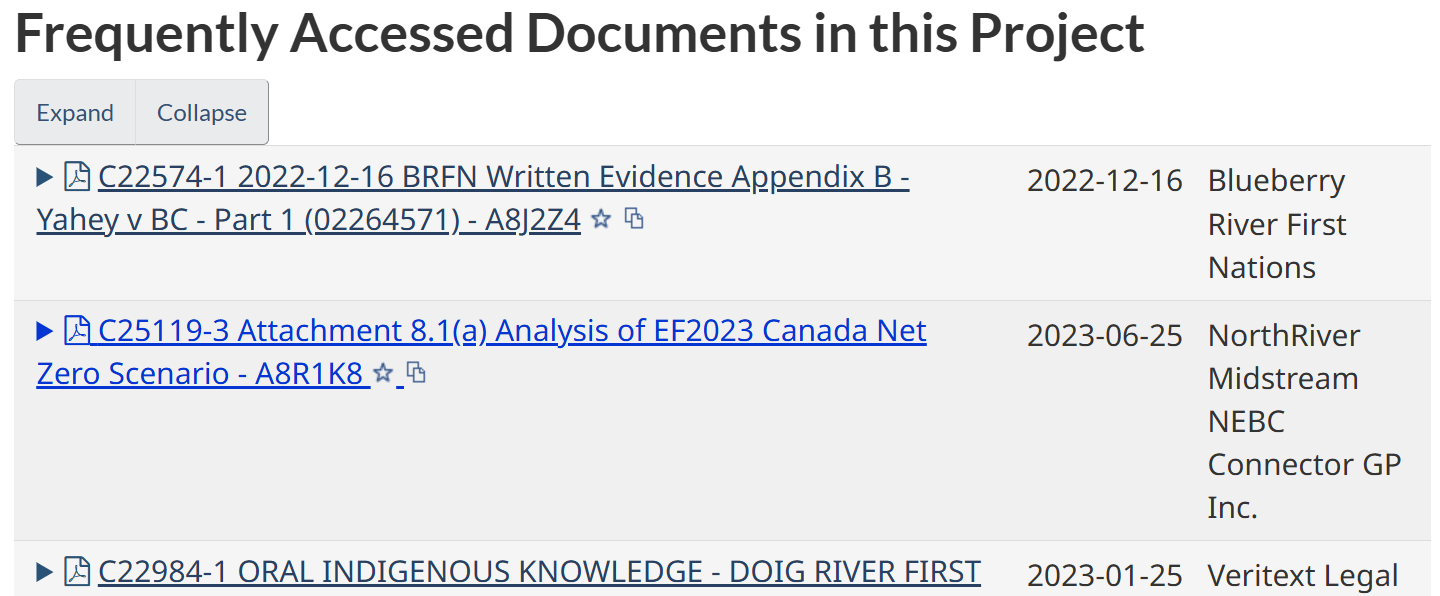
Image Description
Screenshot of the frequently accessed documents in NEBC Connector Project section from a project page on the CER’s REGDOCS website. The section displays three frequently accessed documents with their titles, document numbers, and associated organizations. The first document is filed by Blueberry River First Nations on 16 December 2022. The second document is filed by NorthRiver Midstream NEBC Connector GP Inc. on 25 June 2023. The third document is filed by Veritext Legal Solutions on 25 January 2023. The section includes 'Expand' and 'Collapse' buttons for adjusting the document list view.
3. Quick view / tips
- Maximize your screen for the best viewing experience.
- If you need to see more detail about the documents listed, click on “Expand” or the small arrow to the left of the document title.
- In the expanded view you can click on “See all Documents in this filing: C#####” to see the rest of the documents that were filed with it, if any. This will also bring you to the link for the French version if the document was issued by the CER.
- If you are looking for documents related to a hearing, use the “Active Hearings” link or suggested projects that appear in the search bar when you start typing.
- Find the project folder first, then look for the document you want using a search term, selecting from the folders or documents you see on the page, or using the filters.
- If you are looking for something that was recently filed, use the “Recent Filings” link on the REGDOCS main page.
- When you find what you are looking for you can add it to your list of “My Favourites” to quickly find it again.
- From any page, you can select “Start New Search” – this also takes you back to the main REGDOCS page.
4. Need help finding information on REGDOCS?
You can contact someone to help you out during regular business hours.
Telephone for Support:
- Toll Free: 1-800-899-1265
- Local: 403-292-4800
For hearing participants please contact your Process Advisor using the phone numbers above, in the information provided to you for the hearing (such as the hearing order), or email Process.Help@cer-rec.gc.ca
For general inquiries or help with documents not available online, please contact the CER Library by calling the numbers above or by emailing library@cer-rec.gc.ca or publications@cer-rec.gc.ca.
5. Feedback
Help us to continue improving by using the online feedback form. Select the “Feedback” link on the bottom of any page in REGDOCS. You can fill in this form as many times as you want! If you are comfortable providing your email address, we can also follow up with you if we have questions about your feedback.
- Date modified: